
How to forward text messages to Slack?
Post incoming SMS messages directly to specific Slack channels using Webhooks.
Slack Incoming Webhooks allow you to post messages from external sources directly into your Slack channels. This is perfect for receiving SMS notifications in your team's workspace, whether it's for OTP codes, alerts, or any other messages you need to track.
Go to Slack API
Go to Slack API
Open the Slack API website and navigate to the Incoming Webhooks section. You'll need to be signed in to your Slack workspace.
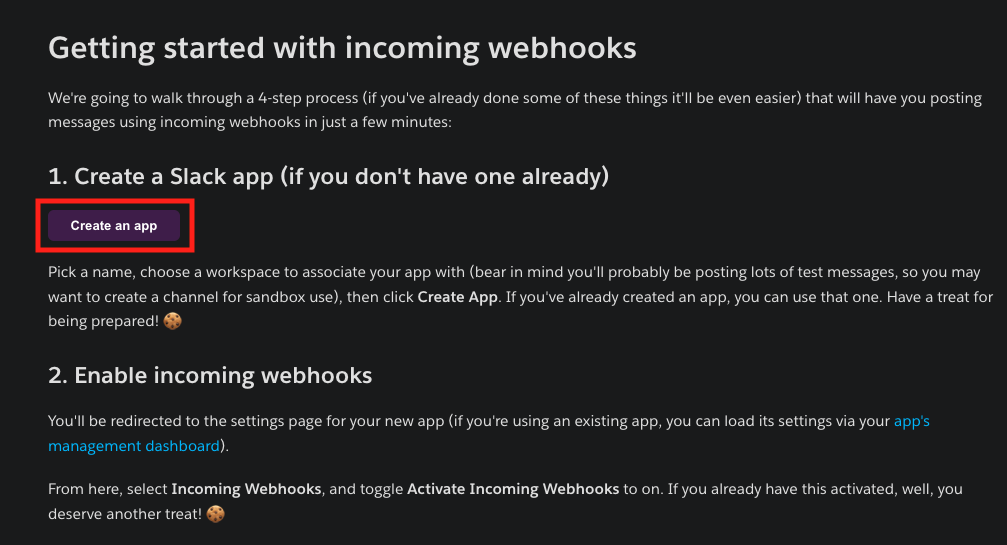
Create New App
Create New App
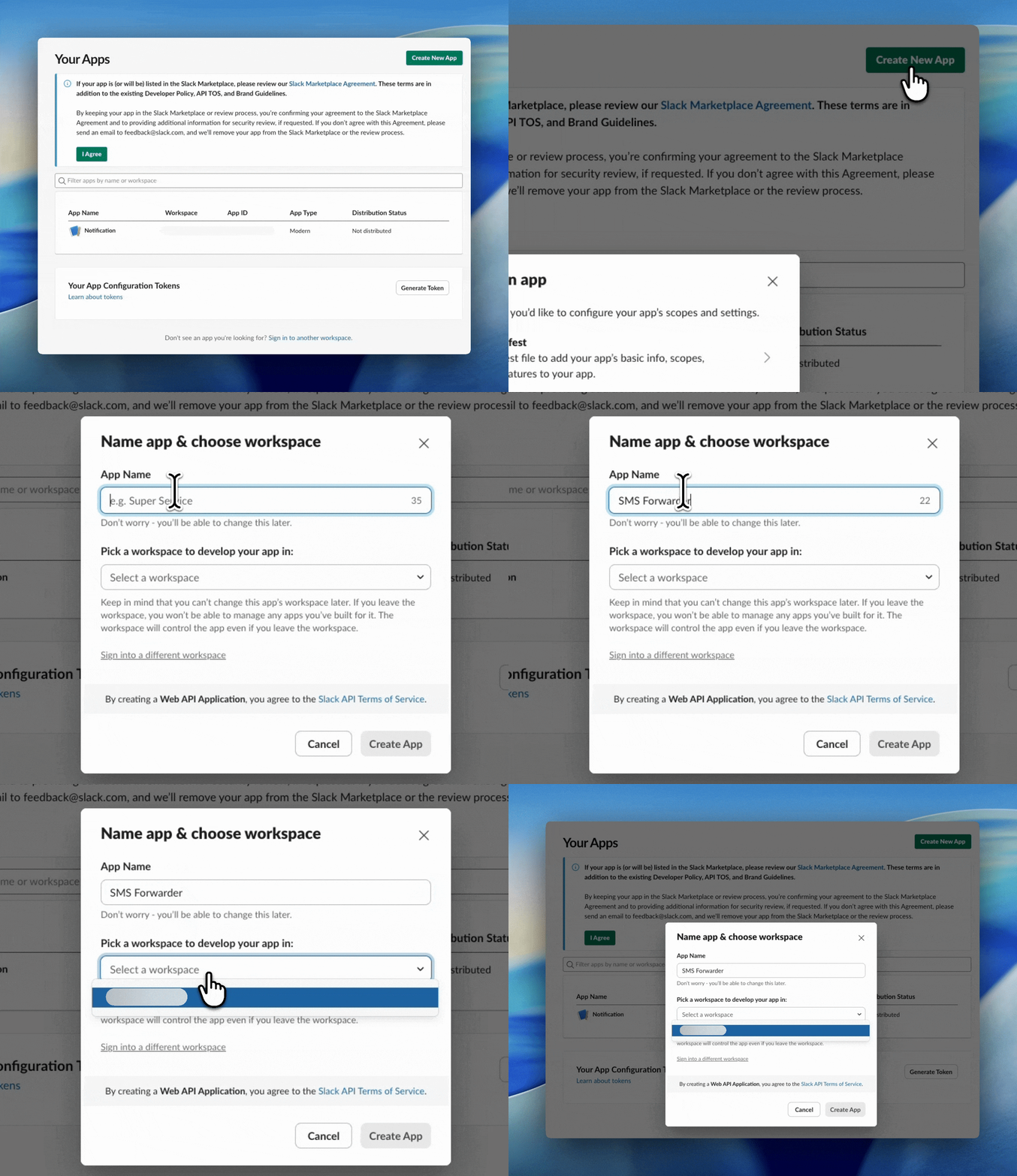
Click Create New App → Select From scratch → Give your app a name (e.g., "SMS Forwarder") → Select your workspace.
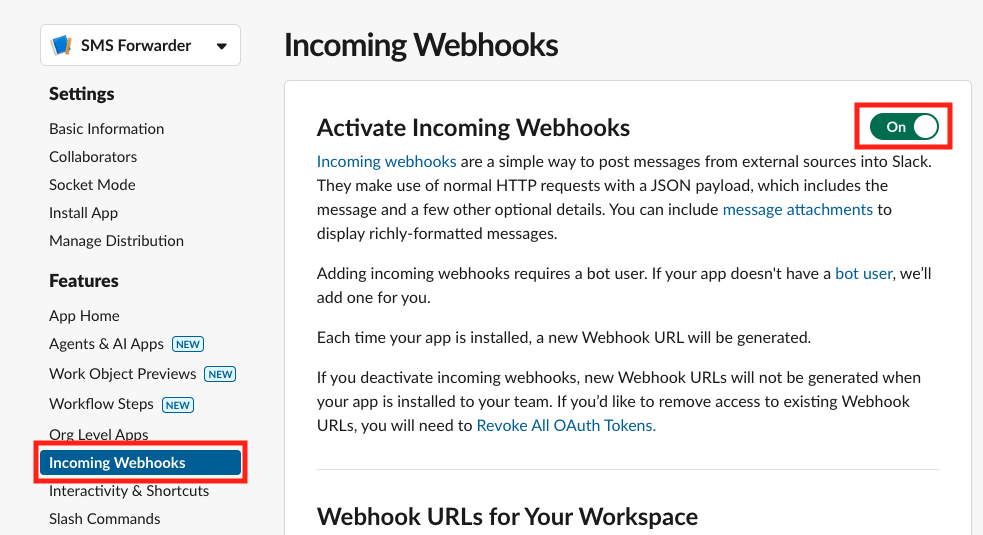
Enable Incoming Webhooks
Enable Incoming Webhooks
In your app settings, go to Incoming Webhooks in the left sidebar. Toggle Activate Incoming Webhooks to On.
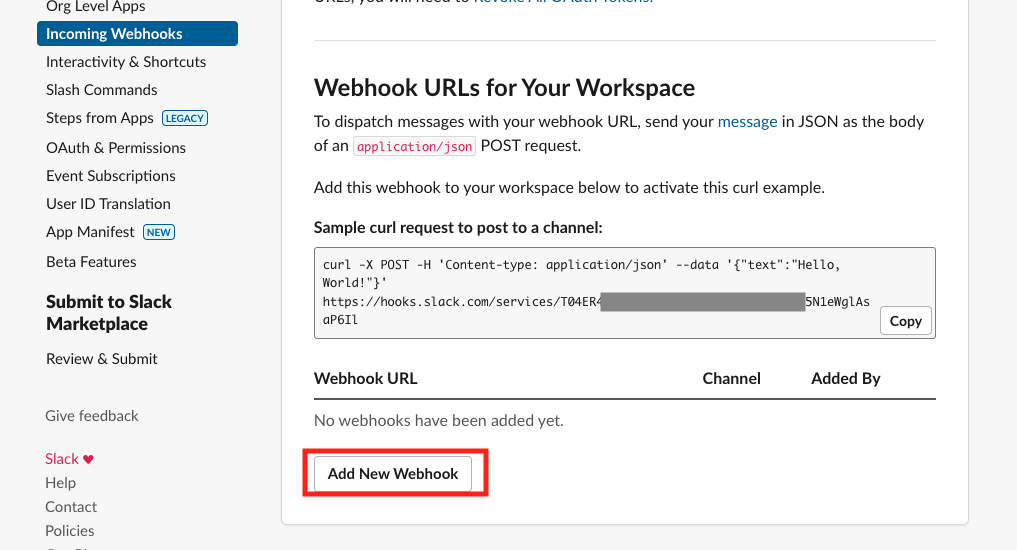
Add Webhook to Workspace
Add Webhook to Workspace
Scroll down and click Add New Webhook to Workspace. Select the channel where you want to receive SMS messages and click Allow.
Copy Webhook URL
Copy Webhook URL
Copy the Webhook URL that Slack generates. It will look like this:
https://hooks.slack.com/services/T00000000/B00000000/XXXXXXXXXXXXXXXXXXXXXXXX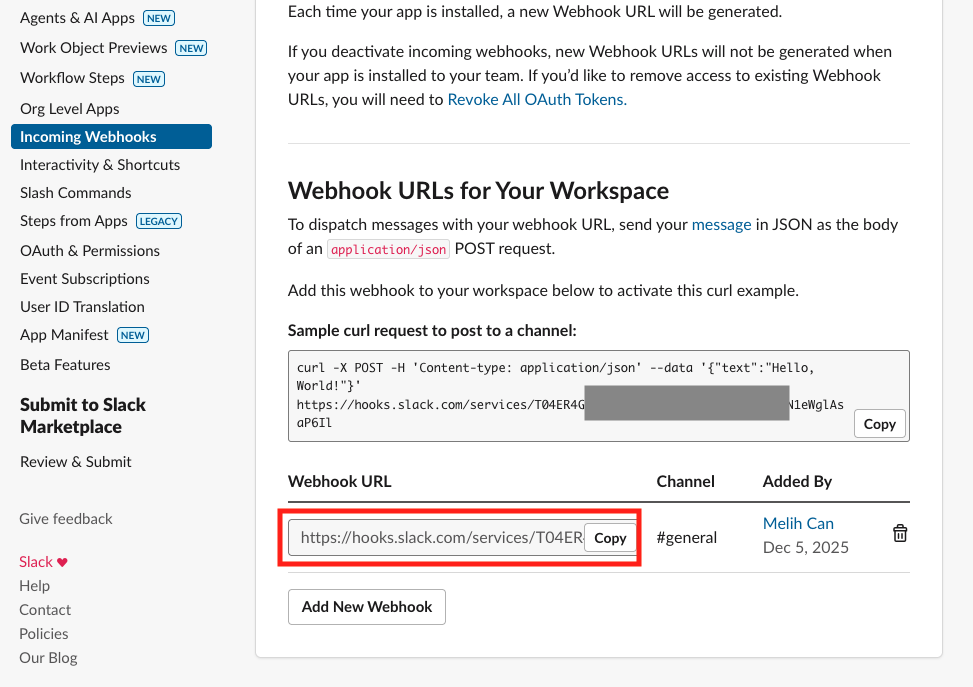
Add to SMS Forwarder
Add to SMS Forwarder
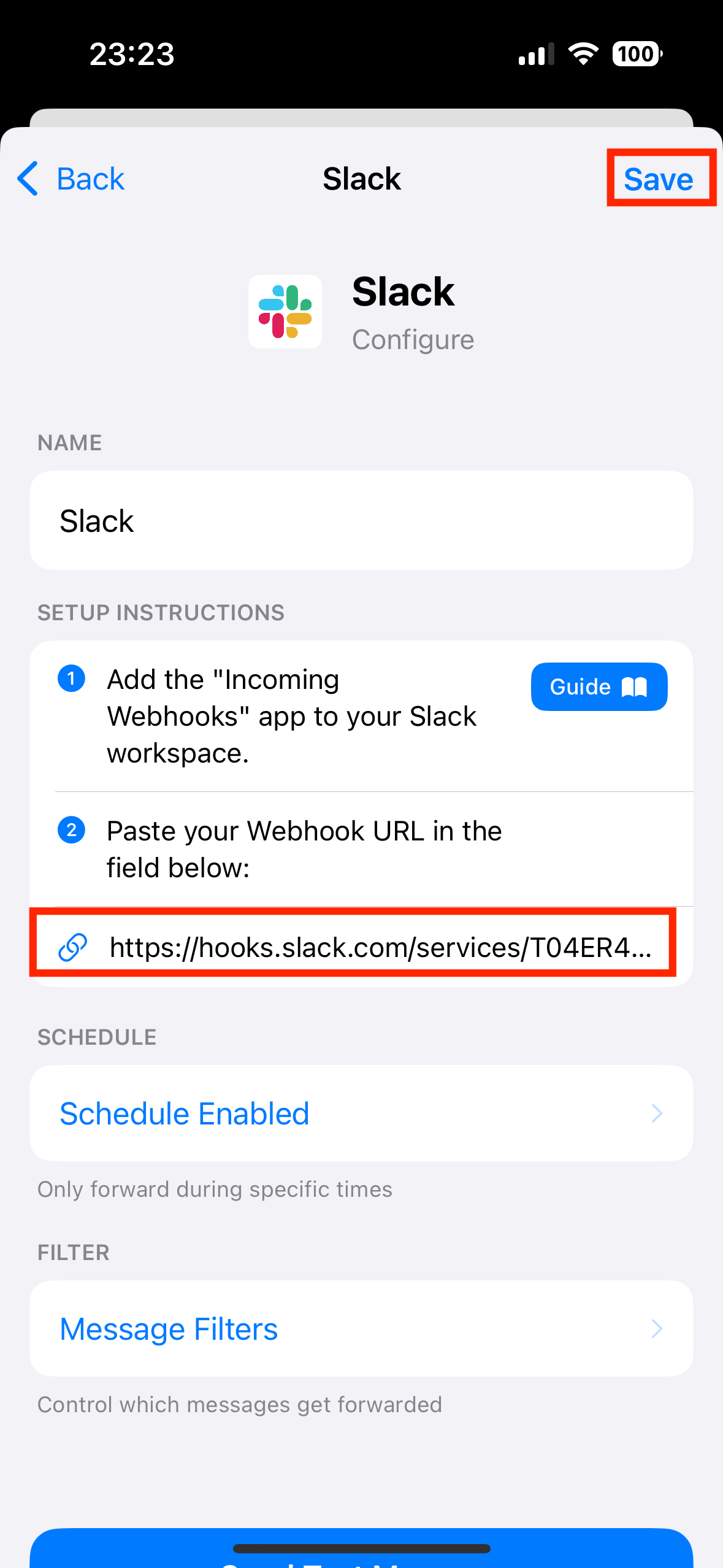
Open SMS Forwarder app, add a new Slack destination, and paste your Webhook URL. Send a test message to verify it works!
Troubleshooting
Webhook URL not working
Make sure you copied the complete URL including the 'https://' prefix. The URL should start with 'https://hooks.slack.com/services/'.
Messages not appearing in channel
Verify that your Slack app has permission to post to the selected channel. You may need to re-add the webhook if you changed channel permissions.
Getting 'channel_not_found' error
The webhook is tied to a specific channel. If you deleted or renamed the channel, you'll need to create a new webhook for the new channel.
Rate limited by Slack
Slack limits webhooks to 1 message per second. If you're forwarding many SMS messages rapidly, some may be delayed or dropped.